Disclaimer for Professionals: The configuration shared through this club is a high restriction “Home Build”. It is not standards compliant.
Need a Business Ready Build? Attend our workshops, see fortified-windows.com
The reason why this is written is because there are hackers among us.
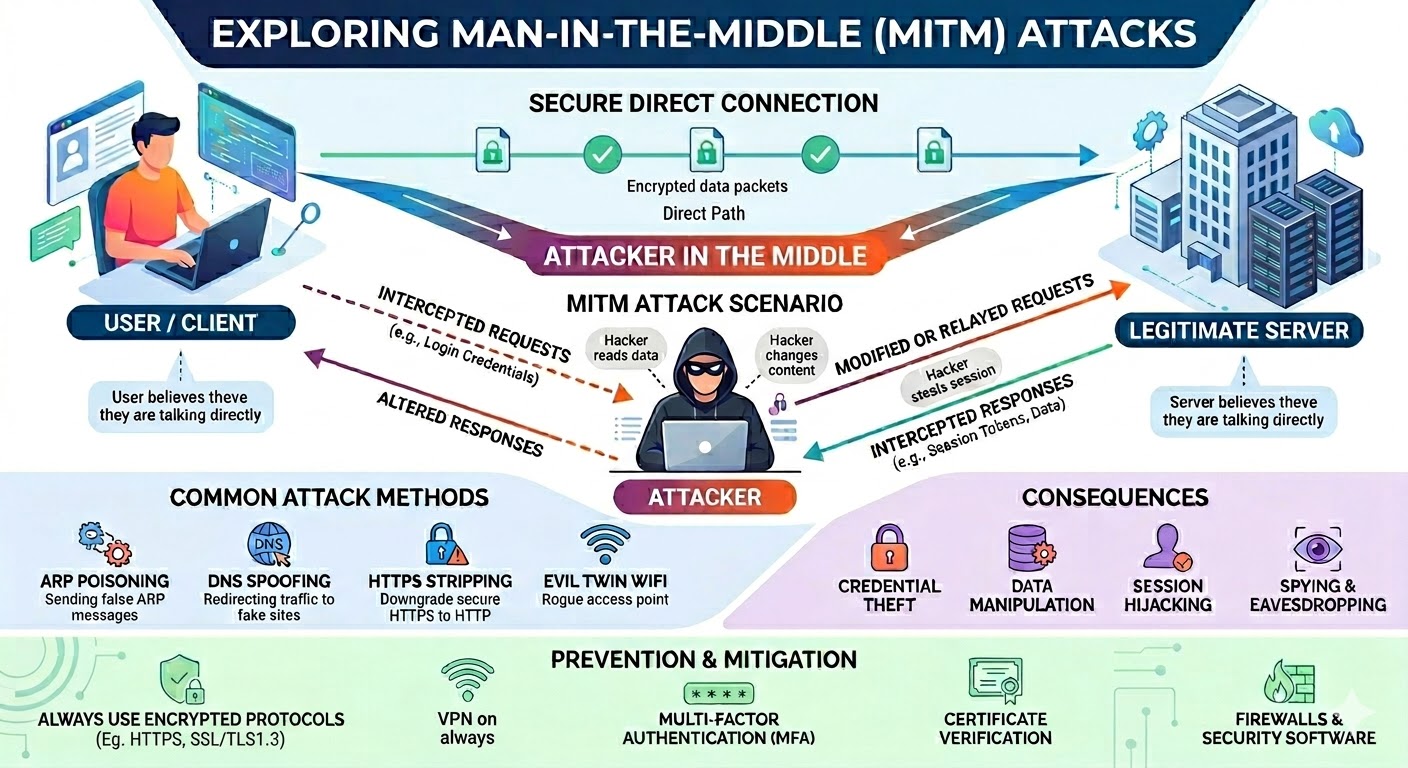
The author observed multiple signs of WiFi attack, I was kicked off WiFi and reconnected to an same name SSID that is not mine. Google.ca and Google.com access were blocked, but Ethernet connected machines were still working. The WiFi ‘problem’ disappeared an hour later with no modifications to WiFi. This shows signs of a man-in-the-middle attack.
A man in the middle attack can do many things. You send network traffic out and it reaches the adversary first then she relays it to the real destination, and the same happens for returning traffic. She can modify the files you download to include malware/hackware. So you get infected despite downloading from an official site. I experienced this. She can also interfere without taking over, like force repeated logons by dropping your traffic selectively, block Antivirus updates so you stay vulnerable. Having experienced all these attack symptoms, the author concludes that he is under attack and it wasn’t just a WiFi malfunction. The author was a cybersecurity instructor in a college and runs cybersecurity workshops.
What most likely happened was that the attacker has overpowered the signal from the author’s router using an attack router and broadcast an SSID with the same name. The result was a ‘man in the middle’ attack where all my internet access goes through the attacker first and is then relayed back to the internet. Depending on how the MITM is setup, the attacker can terminate your connection, setup a separate connection to the site you are visiting and relay the traffic. If it is done this way, he can see the contents of your traffic, including all email, banking and all passwords. He can also now craft very convincing phishing attacks just by faking an email from a site you visit.
To be able to do this, the attacker needs to be nearby because WiFi does not travel very far.
Having a MITM in place, the adversary will attempt to infiltrate your PC. Modifying your downloads is just one way. Hacks vary, an attacker can attack other things that interact with the network, like services or your browser to name two. In normal circumstances the router has a firewall and that stops attacks, but now we are using the attacker’s router and the attacker is ‘inside’ the LAN, there is a lot more they can do.
There are ways to protect your PC and protect your online travels. And antivirus protects only against mass circulation malware and not against hackers.
Go to meetup.com and sign up and search for Grenoble Cybersecurity. First meetup is on Apr 20 7pm. The meetup address is on the meetup site.
Hackers comes with varying skills. The graduates may join cybercriminal ranks, and the script kiddies attack ordinary people. The rewards are similarly scaled. A ransomware attack against a big firm nets you a big lump sum, while your personal identities, credit card numbers, passwords and your hacked PC sell for less. And then the beginner hackers attack just because they want to be nosy, to practice their skills, and wreck your PC and giggle while you try to recover. Just as the news on TV only cover the big crimes and not petty burglaries, cybersecurity news don’t report that Joe Blow has been hacked. So don’t count on being lucky.
To do solid security we have to be mindful of a few concepts. Practice defense in depth and implement several different layers of security.
The first mission is to protect, then detect, then recover. The tools I recommend below does these 3 things.
Practice Least Privilege and Least Functionality. Least privilege means make the user account only capable of doing things essential to your job at hand. And there can be many different ‘jobs’ and ‘tasks’ accounts from managing the home budget and banking, to playing games, to aimless surfing, to administering the PC. So do not use the admin account for non PC administrative use like browsing or answering email. And setup accounts for different task categories. Least privilege allows you to minimize your losses if an attack occurs, and also make sure that the attacker do not obtain admin rights over your PC. The attacker gains the privileges of in use account when he lands on your machine. Least privilege is practiced in organizations ranging from DoD (department of defense) to banks. And your PC is a piggy bank:)
Least Functionality means configuring your PC so that it does only the things that are necessary. So if you don’t use Powershell then disable it. (Hackers love Powershell, it is so powerful) If you don’t use a default app that comes along with Windows you uninstall it, so that future vulnerabilities that arise from it doesn’t concern you. Security vulnerabilities are discovered every week, that is why Microsoft gives us Windows Update – to patch those vulnerabilities every month.
Use your cell phone, using cellular network (not WiFi) try to reach Google.ca. If it succeeds and your PC WiFi doesn't, then it suggests router problem, MITM and WiFi problem. Now use a USB Adapter and connect your PC to your cell phone. If the problem follows you when you are connected to your cell phone, then that suggest a PC compromise.
Right click - download this page for reference when installing Windows offline.
If at all possible, start from a fresh Offline Installed Windows. (You press Shift-F10 and type in ‘oobe\bypassNRO’ at the Configure Region + Keyboard phase, then choose ‘I don’t have internet’.) We will be doing a snap shot of your clean uninfected PC and defining what’s should run and what shouldn’t. If the snapshot is taken while you are infected, then the infection will continue and will be treated as ‘normal’.
Having a 'clean' PC to start is a critical step. If you have noticed anything 'funny' in your PC like UAC prompts not appearing when they usually do. Or Defender has a small red icon in your systray. Or some security feature just won't turn on as before. Then there is chance you maybe infected/hacked already. Some attackers are loud, and some attackers try to hide in plain sight. But what they All do is turn off security for their own convenience. So if you have been putting off fixing your PC, now is the time to fix it. And using the free drive image backup software as shown below you won't ever have to do it again. All is not lost, you get up, go to your corner, drink some Gatorade, refresh yourself, and prepare for the next round. Fix your PC, secure it as per below, follow the procedures and let's see what they've got.
The following sections list the configuration and tools that the writer uses. I use several tools, some commercial and some free. And each handle different kinds of attacks. It is important to have layers of defense. I can do some of the protections without the tools, but explaining them would make this page much longer and complicated. I am not affiliated with any of the tool vendors/authors.
Since the attack is WiFi based, switching to Ethernet cabling would help. Most routers and ISP supplied modems have Ethernet ports. And you can string the cabling along walls and along door frames to make it look tidy. Another solution is to use USB connectors and use your cell phone's cellular connection as your internet connection. But be aware that you might need more Data for your cell phone plan.
UPNP allows applications like games to punch firewall holes. Remote management enables router management from the outside. WPS allows easier WiFi connections for new devices but has exploitable hacks (not commonly available nowadays). Go to your router’s web page and make sure they are all off.
If your router has configurable firewall rules, block Remote Procedure Call & SMB: explicitly block 135, 137-139, 49152-65535 from reaching your PCs. These are strictly LAN protocols, traffic should not arrive from the internet. Blocking it on the router firewall does not affect local traffic inside the LAN/switch.
If your router and / or modem can be patched then do that. Most people are not aware that routers need patching.
This program monitors the registry and forbid changes to crucial registry items which allows the adversary to restart their hackware when you reboot your PC. Their hackware has to restart every time your reboot, or else they lose control of your PC.
Cost USD 18/yr. 30 days trial.
This is the program that does the snap shot of your PC so that new software/malware/hackware can be detected and be scrutinized on. Know that you cannot see what a hacker is doing in that you won’t see a Powershell window with him typing all his commands. Nor will you be able to see that he is setting up a backdoor. But CyberLock detects what is being run in the background, and if it is new, not seen before, it will let you know so you can block it. If you are away from your PC or don’t respond, it blocks.
Upon finishing install, wait 3-10 secs, and you will be presented with a choice, choose the white list side on the right. (blue background)
CyberLock has a blue shield systray icon. And from there you should change it to ‘Always ON mode / Aggressive’. And make sure you see that icon present at all times. There is also a tiny notifier above the systray that should say ‘locked’ .
CyberLock has AI capabilities and analyzes new software to see what Windows functions it uses, if it is suspiciously encrypted or obfuscated, among other things. If it finds trouble you will be shown a big dialog box to ask you if you want to allow or block the program. If you aren’t installing or trying out new software this is suspicious and you shouldn’t allow it to run. Be careful, once you allow a program CyberLock usually won’t ask about it again.
Cost: USD $30/yr. 30 days trial.
H_C is a system hardening app. It does Least Functionality. It turns off Powershell for standard user accounts (because they aren’t admin and should have no business fiddling with Powershell) It also turns off various scripting languages built into Windows that aren’t popularly used anymore but are still powerful and dangerous in the wrong hands. (like cscript, mshta) It also does Least Privilege; it turns off the standard user account’s UAC prompt, so that they cannot do dangerous things like editing the system registry. This means the attacker also cannot do that. Because the attacker gets the rights and permissions of the user’s account at the time of attack.
The goal is to trap the attacker in that least privileged account so he can’t gain admin permissions to take over the PC. So use a standard account for daily work. This is an operational thing that no security program can enforce, it’s up to you. Know that convenience is at odds with security all the time. If you think it’s too inconvenient to have to log out log in to admin, the attacker thanks you.
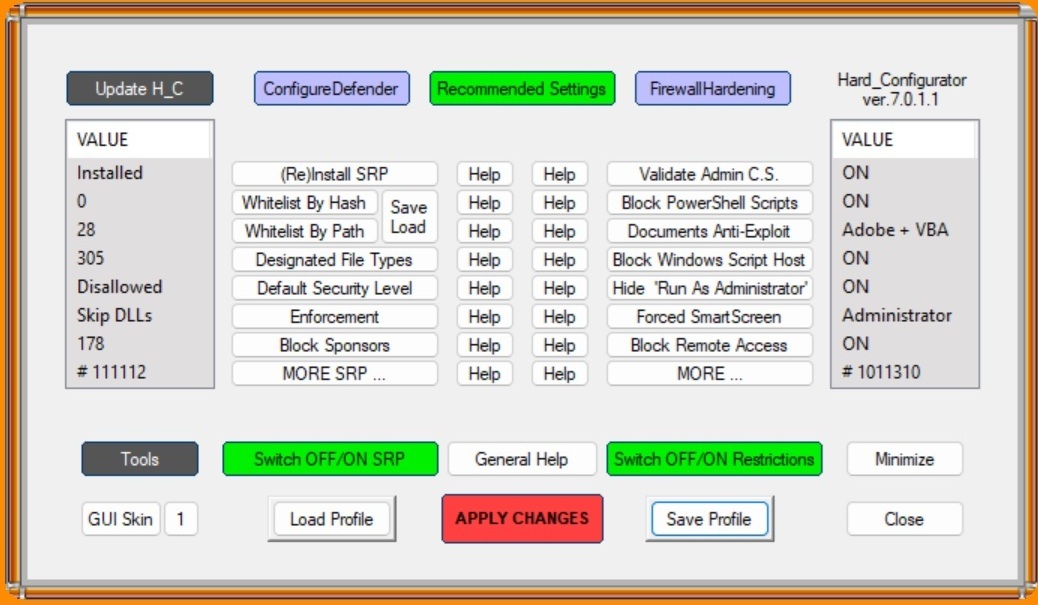 Hard_Configurator has many settings, and I encourage you to read the
many help buttons because you can't configure it without reading the
help, In the screenshot are my settings. Note the numbers too as they
indicate what settings were chosen in that sub screen.
Hard_Configurator has many settings, and I encourage you to read the
many help buttons because you can't configure it without reading the
help, In the screenshot are my settings. Note the numbers too as they
indicate what settings were chosen in that sub screen.
Note for 'Block Sponsors': I chose 'enable all'. As these are LoLBins (living off the land binaries) files attack tools. They are all part of Windows, but can be used by attackers to execute their tools under a familiar windows name, or to download hack tools unnoticed.
Blocking all those built in LoLBins does disable some features, 'MMC.exe' is used for gpedit, services, device manager and eventviewer. Regedit is also blocked. Simply unblock mmc.exe and regedit and hit Apply to use them. And don't forget to toggle them back on after use.
Note for 'Block Powershell Scripts': This item block running.ps1 powershell script files. It does not block running single commands. And in 'Block Sponsors' you will see the option to block Powershell entirely. The Terminal (Admin) is never blocked for admin accounts. The terminal / powershell is very powerful and can disable all security, AV and firewall. So you want to stop the attacker from reaching it.
Under the 'MORE' button you will find the 'Disable Elevation on SUA'. SUA stands for standard user account. And this choice allows one to disable UAC for standard user accounts so that they can never elevate to admin. This is a prudent move. It does mean you would have to login to the admin account to manage the computer, make networking changes etc. Know that once an attacker enters your machine and if you are using admin they will gain admin too. That means they will be able to configure your machine, disable security and wreck havoc. You want them trapped in the least privilege standard user account without the means to obtain admin. And know that Microsoft has said again and again that UAC is NOT A SECURITY BARRIER. It is not the job of UAC prompt to stop attackers from gaining admin. UAC's only job is to make you aware that you are doing a PC administrative task and to give you a chance to back out. The only secure method of reaching admin is via login. There are countless publicly documented ways of bypassing UAC documented at the UACme website and MS is slow at fixing them. Hackers of course know the website. So the safest thing to do is not show the UAC to standard accounts at all.
After installing H_C, you won’t be able to run anything except from \program files, \program files (x86) and \Windows. That means you cannot run any installers from \Downloads. To run an installer, make a directory \program files\INSTALLER and copy your setup programs there.
Hard_Configurator : free
Services are a hot item for attackers because they typically enable them to gain high privileges and then they can take over your PC. Your PC has internal accounts besides the one you have setup. For example ‘SYSTEM’ and ‘Trusted Installer’. Some internal programs run using the system account. One way to hack a PC is to take over an internal program and gain it’s permissions. The current focus is on disabling services that need a server to work, services that interact with the network (some networking services cannot be disabled and thus not chosen below) , services that goes against least functionality principle and services that runs with high privilege. MS enables a LOT of services because they want a good easy ‘out of box’ experience without you needing to do anything. Instead, they should turn on services only as when needed, especially the ones reachable via networking.
Recommended approach: go through the list below several at a time (10 is a good number) noting down before values stop the service, and then check if your applications are still working, do the next batch and test again. Because I do not know what applications you use. These settings work for me.
Note: Settings > Personalization > Background, and Lock Screen stalls a bit and resume when these services are disabled.
Run “services.msc” and set the following services to Manual: (Manual means it can start automatically on demand or be manually started by you. Disabled means it will not start). On my system I set the services below to Disable because I know that they don’t affect anything useful. But on first try it is safer to set them to Manual, and see if your applications or Settings start them up again.
Application Management
AssignedAccountManager service
Auto Time Zone Updater
Branch Cache
Cellular time
Connected Device Platform service
Connected Users Experience and Telemetry
Data Sharing Service
Data Usage
Device Management Wireless Application Protocol (WAP) Push message routing service
Device Setup Manager
DHCP Client, Before you disable this, you have to go to Settings > Network & Internet > Ethernet or WiFi . And edit your IPv4 address, keep the first 3 groups of digits, and change the last group to any number between 1 and 254. The gateway address uses 1 as the last group. For DNS servers, use malware site blocking Quad9’s server addresses: 9.9.9.9 and 149.112.112.112 .
DialogBlockingService
Display Policy service
Distributed Link Tracking Client
Distributed Transaction Coordinator
Downloaded Maps Manager
Function Discovery Provider Host
Function Discovery Resource Publication
Human Interface Device service
IKE and AuthIP Ipsec Keying Modules
Internet Connection Sharing
IP Helper
IPSec Policy Agent
KtRm for Distributed Transaction Coordinator
Link-Layer Topology Discovery Manager
Microsoft App-V Client
Microsoft Cloud Identity Service
Microsoft Keyboard Filter
Microsoft Storage Spaces SMP
Netlogon
Network Connected Devices Auto Setup
Network Connectivity Assistant
Offline Files
OpenSSH Authentication Agent
Performance Counter DLL Host
Portable Device Enumerator Service
Print Device Configuration Service. You might need this if you use a printer.
Program Compatibility Assistant Service
Quality Windows Audio Video Experience
Radio Management Service
Remote Access Auto Connection Manager
Remote Access Connection Manager
Remote Desktop Configuration
Remote Desktop Services
Remote Desktop Services UserMode Port Redirector
Remote Registry
Retail Demo Service
Routing and Remote Access
Secondary Logon
Secure Socket Tunneling Protocol Service
Server
Shared PC Account Manager
SMNP Trap
SSDP Discovery
TCP/IP NetBIOS Helper
Themes
UPNP Device Host
User Experience Virtualization Service
Web Client
Windows Camera Frame Server
Windows Camera Frame Server Monitor
Windows Connect Now – Config Registra
Windows Font Cache Service
Windows Health and Optimized Services
Windows Management Service
Windows Mobile Hotspot Service
Windows Push Notifications System Service
Windows Remote Management
WLAN AutoConfig. Only disable if you don’t use WiFi and user Ethernet cable
Workstation
WWAN AutoConfig
Xbox Accessory Management Service
Xbox Live Auth Manager
Xbox Live Game Save
Xbox Live Networking Service
MS Defender > Device Security > Core-isolation = ON
MS Defender > Device Security >Secure boot = enabled
Process injection is an attack technique which loads malware into a trusted application’s memory space and run. Thus you won’t see any new exe’s running in Task Manager. Picus’s Red Report 2026 reports that this technique has been found in 28% of malware in 2025. Many anti-malware has detection for this. And H_C’s ConfigureDefender configures Defender’s ASR (attack surface reduction) rules to protect against this. However a section of process injection ASR rules only work for MS Office. If you use Libre Office or any other open source office suite, you need a third party anti-malware to cover this attack technique.
The moment you first connect your WiFi or Ethernet, Windows will attempt driver updates. Most of the default drivers that came with the Windows installation are fine. If you don’t like the screen refreshing that goes on while the drivers are updating you can stop it.
If you have Windows Pro. You can run ‘gpedit’ and navigate to
Computer Configuration > Administrative Templates > Windows Components > Windows Update > Do not include drivers with Windows Update = enabled
Start and close H_C
Sysmon is a supplemental event logging module. It logs all foreground & background program starts, and it gives user understandable messages of suspicious things that hackers do.
First download and extract the zip file. Then make a folder under \program files named Sysmon. Then copy the extracted files into that folder
Next go to https://github.com/SwiftOnSecurity/sysmon-config . And download sysmonconfig-export.xml When you click on that link, it will bring you to a page that has line numbers on the left. Find and click on “Raw” button on the right side. Then the numbers will disappear and you can save the page to the sysmon directory.
Next open a admin command prompt. Type in:
cd “\program files\sysmon”
sysmon64 -i sysmonconfig-export.xml
Sysmon is now initialized.
Think of Sysmon as the "black box flight recorder" for your Windows environment. While standard Windows logging is like a grainy security camera that only catches major movements, Sysmon provides high-definition, granular telemetry that tells you exactly who did what, where, and how. This service does not aim to protect, but aims to detect attacks.
This -i command installs the Sysmon service and driver while simultaneously applying a massive list of include/exclude rules. These rules are the "secret sauce" of the configuration; they are designed to filter out the noise of routine system background tasks so that you only see events that look like an active human intruder rather than a routine Windows update.
The first trick for spotting a hacker is looking for temporal correlation using rundll32.exe, a common "Living off the Land" binary (LoLBin). In your logs, you are looking for a Process Create (Event ID 1) for rundll32.exe appearing "near" a Network Connection (Event ID 3) for that same ProcessID. Since rundll32 is a legitimate Windows utility used to run code inside DLLs, it shouldn't typically be reaching out to the internet. If you see it start and then immediately open an outbound connection to a foreign IP, you’ve likely found an attacker using a trusted system tool to download a malicious payload or call home to a C2 (command & control) server. Note the <firewall hardening> of H_C forbids rundll32 to connect through the firewall. So when you spot the above event take it as an indicator that you are under attack, but it should not do any harm.
A second common hacker trick is Credential Dumping, which focuses on stealing the "keys to the kingdom" (passwords) from the system's memory. The SwiftOnSecurity config monitors for Event ID 10 (Process Access), specifically looking for any process that isn't a known security tool attempting to open a "handle" to lsass.exe (the process that manages your logins). When an attacker runs a tool like Mimikatz to scrape password hashes, Sysmon captures the source process and the exact call trace, effectively flagging the moment someone tries to reach into the system's "vault" to steal user credentials.
The third trick involves Process Injection, where a hacker copy their malicious code into the memory space of a completely innocent, running process to hide. This is tracked via Event ID 8 (CreateRemoteThread). By monitoring this event, you can see if a suspicious background script is trying to hijack a trusted process like explorer.exe or svchost.exe to bypass your firewall and stay persistent on the machine. Because the SwiftOnSecurity config filters out common legitimate injections, any ID 8 that pops up is usually worth a very close look.
To find these "suspicious things" in practice, navigate in the Event Viewer to Applications and Services Logs > Microsoft > Windows > Sysmon > Operational. This log is your primary hunting ground; use the "Filter Current Log" feature to isolate specific Event IDs. By searching for that "nearness" between an ID 1 (Process Create) and an ID 3 (Network Connection) for rundll32.exe, or checking for unauthorized ID 10 requests against lsass.exe, you can reconstruct an attacker's timeline and see exactly how they moved through your system using legitimate tools as a smokescreen.
Apart from starting at Event Viewer as you first try. You can start H_C, click on the black Tools button, then click on Blocked Events / Security Logs at the top. This allows you to see when the use of a forbidden Sponsor was attempted. Then note that time and go to Event Viewer Sysmon > Operational and Filter for the same time to see the Parents of the command and also the command parameters. Look back and forward 5 mins of the event to see what else was happening around the same time. It might reveal the source of the intrusion.
Separately go tp Event Viewer > Application and filter for event ID 1000. It indicates a crash. Many times a buffer overflow attack will cause the application to crash. And then the attacker gains it’s privileges.
You would have saved your installer/setups apps for applications that you use. Check each setup program’s signatures before using it. (right click on file, click on properties, signatures tab, details button and make sure the signature is valid; if signature isn’t valid discard it). Smart attackers would modify your setup programs to include what they want to ensure that your machine stays infected. Note that the signature does not ensure that the file is unmodified. To do that you need to check the Hash, using Powershell's get-filehash command - if the file publisher publishes the hash.
Google for “<app name> offline installer” so that you can install all your apps while offline.
Smart App Control blocks untrusted code from running. MS has a lot of telemetry to enable them to detect untrusted code. Go to Defender > App & browser control > Smart App Control = enable. If you use a lot of unsigned apps then you may want to turn it off.
DNS is the address book of the internet translating friendly names like www.google.com into numerical ip address so computers can send traffic with the ip. The latest Windows has offered Encrypted DNS for a while now. And it can be helpful to foil MITM attacks. Go to Settings > Network & internet > Wifi or Ethernet and Edit your DNS server assignment. I use Quad9 DNS servers which filter out known malware, their addresses are 9.9.9.9 and 149.112.112.112 . Or you can use Google's 8.8.8.8 and 8.8.4.4 . And enable encryption.
This allows you to make a backup drive image. It backs up your whole drive, including your settings, applications and data files. This allows you to recover from an attack in one swoop. Do it Before you go online so that you have a non-altered pristine image. HasLeo can also do file based backups, depending on how much data you modify per day, set a schedule to do regular backups.
For my 512 GB drive it created a ~40GB file. So go buy a 128 GB USB thumb drive and save the image there. You also need a smaller capacity USB stick to store a bootable copy of HasLeo, so that you boot up Hasleo and insert the restore stick with the data to start restoring.
Backup Suite: Free
USB 128GB thumb drive: $22
Hackers are a difficult cybersecurity problem because a human attacker can adapt in ways that ordinary automated malware cannot. When one path is blocked, he can look for another, or change to a different hacking tool.
By following this guide, you have to acknowledge that this is transparent security. As the attacker may also duplicate the configuration laid out here and try to break or bypass the security. And just as you benefit from the free 30 day trials, so can he. The security is only partially derived from the tools we use, but also from our practices and administrative procedures. We check our security configuration regularly, we check the logs, we do our vulnerability scans, and we do our patching. We upload new downloads to VirusTotal, we do our backups and we don't click on email attachments or emailed links. The upkeep of our security is as important as the tools themselves. Transparent security or not, the control strategy is sound. When we do our due diligence in addition to the tools chosen here, breaking through the defenses is hard. Attackers tend to choose low hanging fruit rather than tackle layers of defense.
People tend to put off implementing controls citing cost and effort problems. If you don't implement controls, you suffer incidents more often, and the damage is greater - the blast radius could affect multiple laptops.
According to police records in 2023, there were 48,371 reported cybercrimes reported. And there normally are huge un-reported incidents. That is no small number. So consider your chances carefully.
Our goal is to contain the attacker inside a least-privileged, task-specific standard account so he cannot take over the machine. We block untrusted applications from being brought onto the system with CyberLock, which alerts us when a new executable tries to run. We remove access to PowerShell, cmd, and some built-in Windows tools through Hard_Configurator so the attacker has fewer local tools available. We remove easy paths to administrative action by tightening UAC elevation and Secondary Logon exposure. We protect important registry locations so scripts cannot easily establish longevity and survive reboots. We also disable unused services to reduce attack surface. And we have our image backup in case we get hacked so bad that we can't repair or when we encounter ransomware which encrypts our data. Added all together, the layers make up a strong defense.
That does not mean the machine can be ignored after hardening. Attackers adapt, new vulnerabilities are discovered, and sometimes security products themselves can have weaknesses. So periodically check the logs – as some hackers lie low and avoid detection while others enjoy wrecking things so you would notice. Being able to detect an intrusion is as important as setting up defenses.
Patch your Windows, browsers, applications and security diligently. Do backups as scheduled. There is no permanent cure. Security is an ongoing process, not a project with an end date.
Go do Windows Update for the current month. DO NOT BEGIN SURFING until update is done. Then update your browser by going to Help>About.
A virtual private network builds a encrypted tunnel to their server, and then goes to your destination, so your browsing cannot be seen by the attacker. When facing a MITM attack you have to protect your internet travels.
I use ProtonVPN, a Swiss VPN company. They have a free tier.
Security vulnerabilities are software bugs that allow hackers to attack. And new vulnerabilities are discovered continuously (like the recent adguard vulnerability CVE-2026-32136). The standard old time vulnerability scanner is Nessus.
And then there are patching utilities like PatchMyPC which brings down patches for some popular software.
Procedures, what we manually do, matters as much as technical controls like AV's and CyberLock. Here are the basics;